Repository Management
The following features are experimental and may cause unexpected behavior. Use them carefully and report any issues you encounter.
The Repository Management page under Settings allows you to configure various ways to manage your wiki repository, including HTTP access for users, automated pushes on every wiki change, and automatic pulls when external changes occur.
Git Web Server
Enabling Git Web Server allows users to access wiki contents as a regular git repository via HTTP. Users with READ permission can pull changes, while users with UPLOAD permission can push changes as well.
Pushing to and Pulling from SSH Remote
You can enable automatic pushing to or pulling from a pre-defined git remote whenever changes occur on either side. Both settings are not connected to each other in any way and only one or both could be enabled when needed.
In both cases, you must define the git remote address at minimum. Note that only SSH remotes are currently supported.
For authorization, An Otter Wiki supports SSH keys as the most secure and straightforward method. Alternatively, you can configure authorization externally (on your host system if running An Otter Wiki natively, or inside the container), make sure that ssh command can authenticate with the remote server.
When setting up automated pulls, note the generated webhook URL - it's unique to each remote URL. If you change your remote URL, get the new webhook URL as well.
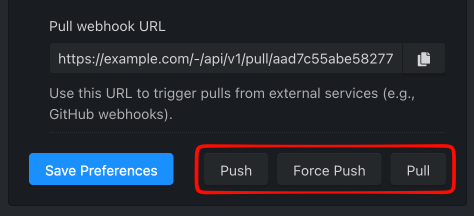
Both push and pull configurations add buttons at the bottom right of the page, allowing you to test your settings.
Configuration via environment variables
Instead of using the Repository Management page, the push and pull settings can be configured via environment variables or the settings.cfg, see Configuration#repository-management. For example with docker compose:
services:
  otterwiki:
    image: redimp/otterwiki:2
    restart: unless-stopped
    ports:
      - 8080:80
    volumes:
      - ./app-data:/app-data
    environment:
      GIT_REMOTE_PUSH_ENABLED: true
      GIT_REMOTE_PUSH_URL: git@github.com:user/wiki.git
      GIT_REMOTE_PUSH_PRIVATE_KEY: |
        -----BEGIN OPENSSH PRIVATE KEY-----
        ...
        -----END OPENSSH PRIVATE KEY-----
      GIT_REMOTE_PULL_ENABLED: true
      GIT_REMOTE_PULL_URL: git@github.com:user/wiki.git
      GIT_REMOTE_PULL_URL_SECURE: true
      GIT_REMOTE_PULL_PRIVATE_KEY: |
        -----BEGIN OPENSSH PRIVATE KEY-----
        ...
        -----END OPENSSH PRIVATE KEY-----
Instead of putting the private keys into the environment, they can be read from files via GIT_REMOTE_PUSH_PRIVATE_KEY_FILE and GIT_REMOTE_PULL_PRIVATE_KEY_FILE (available since v2.25.0). This works well with docker secrets or any mounted file:
services:
  otterwiki:
    image: redimp/otterwiki:2
    restart: unless-stopped
    ports:
      - 8080:80
    volumes:
      - ./app-data:/app-data
    environment:
      GIT_REMOTE_PUSH_ENABLED: true
      GIT_REMOTE_PUSH_URL: git@github.com:user/wiki.git
      GIT_REMOTE_PUSH_PRIVATE_KEY_FILE: /run/secrets/wiki_ssh_key
      GIT_REMOTE_PULL_ENABLED: true
      GIT_REMOTE_PULL_URL: git@github.com:user/wiki.git
      GIT_REMOTE_PULL_URL_SECURE: true
      GIT_REMOTE_PULL_PRIVATE_KEY_FILE: /run/secrets/wiki_ssh_key
    secrets:
      - wiki_ssh_key

secrets:
  wiki_ssh_key:
    file: ./mywiki
The file must be readable by the user running An Otter Wiki, in the docker image this is www-data with the uid 33 (or the configured PUID). If GIT_REMOTE_PUSH_PRIVATE_KEY or GIT_REMOTE_PULL_PRIVATE_KEY is set (via environment, settings.cfg or the Repository Management page), it takes precedence over the corresponding _FILE setting.
Please note: Settings saved on the Repository Management page are stored in the database and take precedence over environment variables. If you configure the remotes via environment variables, avoid saving the form in the settings interface, otherwise the environment variables will be ignored.
When pulling is configured via environment variables, the webhook URL can be copied from the Pull webhook URL field on the Repository Management page. Set GIT_REMOTE_PULL_URL_SECURE: true so that the webhook URL is derived from the SECRET_KEY, this requires the SECRET_KEY to be configured explicitly (with the default docker setup a random SECRET_KEY is generated on first start and stored in /app-data/settings.cfg, which works fine as long as the volume is persistent).
GitHub Example
This example shows how to set up automatic pushing and pulling between your wiki and a GitHub repository user/wiki, including SSH key authorization.
First, get the remote URL from GitHub, for this example it will be git@github.com:user/wiki.git.
Authorization with SSH Key
- Generate a new SSH key using
ssh-keygen -t ed25519 -f mywiki - You'll get two files after that:
mywiki(private key) andmywiki.pub(public key) - Go to your GitHub repository > Settings > Deploy keys > Add deploy key
- Paste your public key (
cat mywiki.pub) into the Key field - Check Allow write access if you plan to enable automatic pushes
- Click Add key to save
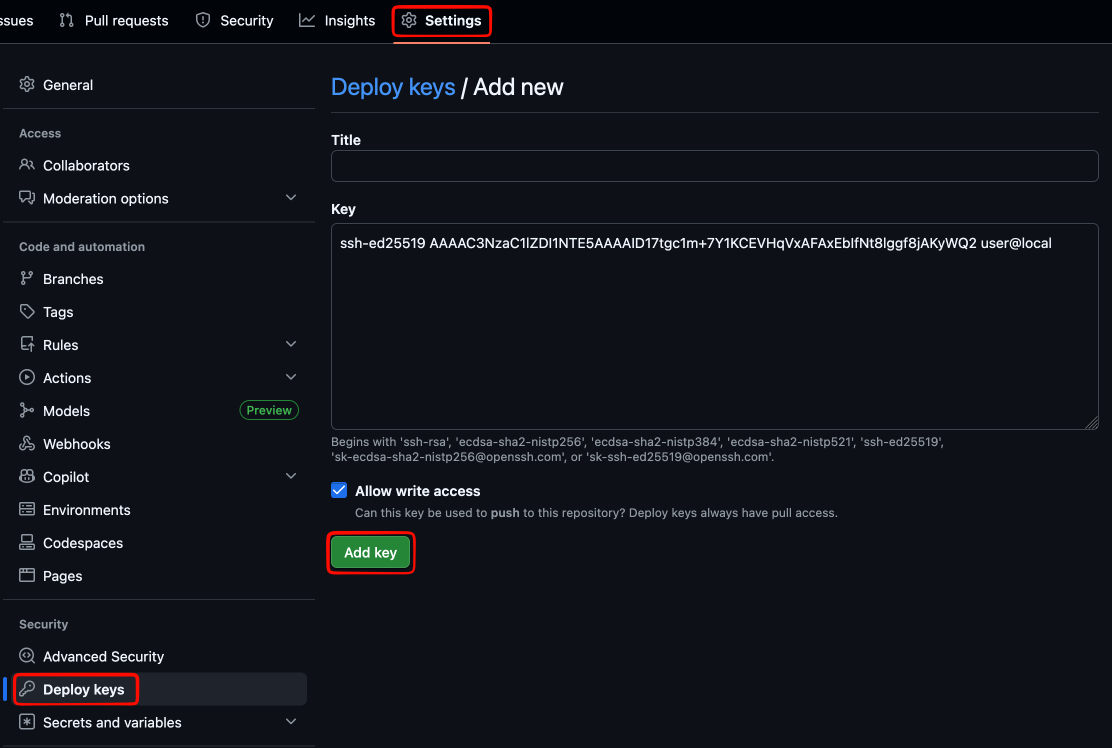
For security reasons, you can safely delete the local key files (mywiki and mywiki.pub) after completing this setup, since An Otter Wiki stores the private key and GitHub stores the public key. Keep the private key if you configure it via GIT_REMOTE_PUSH_PRIVATE_KEY_FILE or GIT_REMOTE_PULL_PRIVATE_KEY_FILE.
Automatic Pushing
- Check Enable pushing to SSH remote
- Paste your GitHub remote URL in the SSH Remote URL field
- Paste your private key (
cat mywiki) in the SSH Private Key (Optional) field - Click Save Preferences
- Click Push in the bottom right to test pushing existing changes to the remote
- If successful, try editing or creating a page in your wiki - changes should immediately appear on GitHub
Automatic Pulling
- Check Enable pulling from SSH remote
- Paste your GitHub remote URL in the SSH Remote URL field
- Paste your private key (
cat mywiki) in the SSH Private Key (Optional) field - Click Save Preferences
- Click Pull in the bottom right to test pulling existing changes from the remote
- If successful, copy the webhook URL from the Pull webhook URL field
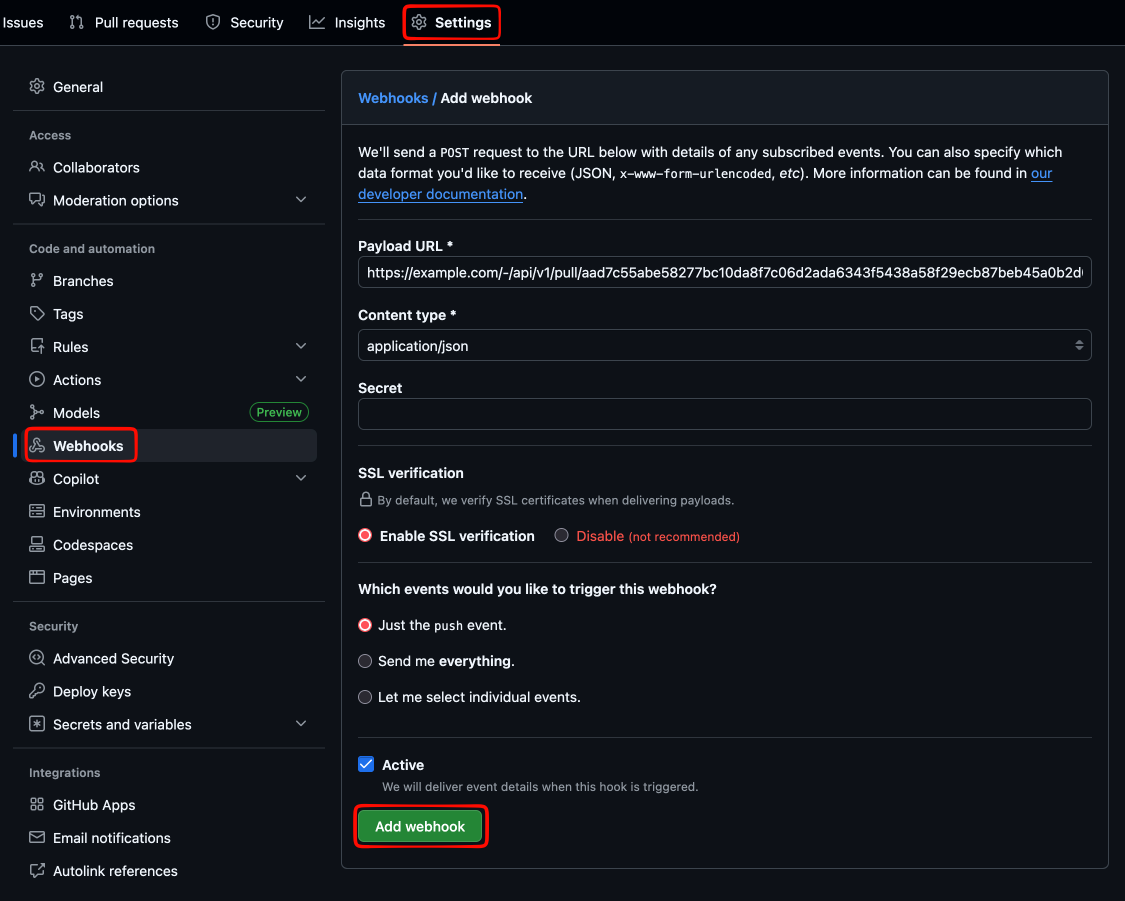
- Go to your GitHub repository > Settings > Webhooks > Add webhook
- Paste the webhook URL into the Payload URL field and select
application/jsonas the Content type - Click Add webhook to save
- Test by editing or creating a file on the GitHub side - changes should be immediately pulled into the wiki